
Support
Guides, answers, and downloads to get you listening fast.

FAQ
-
Press the Play button once to turn MonkeyTape on and start playback. To turn it off, press and hold the Play button until it powers down.
-
Connect MonkeyTape to your computer with a data‑capable USB‑C cable. It will appear as a storage device; drag and drop your music files and then eject it safely. Press the Play button to exit USB mode.
-
Yes. Remove the microSD card, use a card reader on your computer, copy the files directly, eject the card, and reinsert it into MonkeyTape for faster transfers.
-
MonkeyTape plays MP3, FLAC, WAV, and OGG Vorbis. If a track does not play, convert it to MP3 or FLAC.
-
Use FAT32. If you have problems, reformat the card to FAT32 and then reload your music.
-
Single click toggles play/pause, double click skips to the next track, and triple click goes to the start of the current track (or the previous track if you are within the first five seconds). Press and hold for two seconds to turn MonkeyTape off.
-
Turn MonkeyTape on, unplug the earphones to enter Cassette mode, and insert it into the deck. Use the deck’s Play, FF, and RW controls as you would with a normal cassette.
-
MonkeyTape works in most decks, but compatibility is not guaranteed. Some models use tape‑presence or motion sensors that may behave differently. If in doubt, test with another deck.
-
While charging, LED 1 blinks orange; when fully charged, it turns solid green. During playback, LED 2 shows status: green in Player mode, pink in Cassette mode, and blue in Menu/USB modes (patterns indicate play, pause, and FF/RW).
-
A full charge takes about 45 minutes. A fully charged MonkeyTape can play for up to approximately six hours.
-
Make sure the earphone plug is fully inserted, the volume wheel is not at minimum, LED 2 indicates playback, and the microSD card has valid audio files. Try pausing and resuming playback.
-
Wait up to a minute, try a different USB‑C cable that supports data, use another port, reinsert the microSD card, and confirm the card is FAT32. Restart your computer if needed.
-
This usually indicates a problem reading the microSD card or files. Reformat the card to FAT32 and try again with a few known‑good tracks.
-
Double‑click the Play button to enter the menu. Use RW to change EQ and FF to change playback mode. Click Play to save, or wait 10 seconds for MonkeyTape to save and exit automatically.
-
Follow the “4 Rs”: reset (reinsert the microSD), recharge (about 45 minutes), reload (reformat to FAT32 and copy fresh files), and replace (try a different microSD card or different tracks). If the issue continues, contact support.
-
Download the firmware (.bin) from this page.
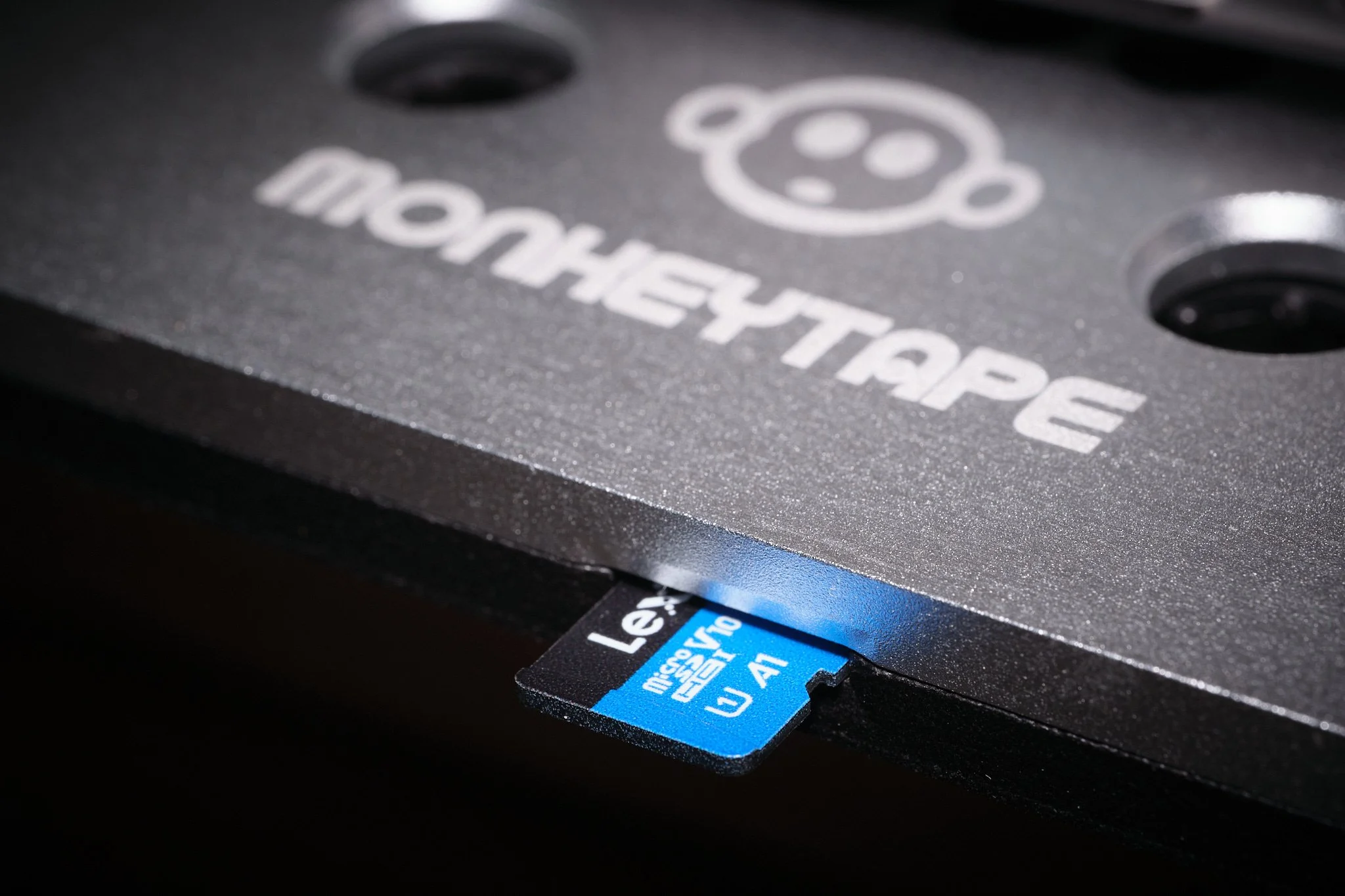
Copy the .bin file to the root of the microSD card. Make sure there is only one .bin file on the card.
Insert the microSD card into MonkeyTape and turn it on. The update starts automatically.
Wait until the LEDs stop alternating white. Do not power off or remove the card during the update.
When finished, the .bin file is removed automatically. Power off and on to use the new firmware.
Downloads
Learn how to set up MonkeyTape, load music, use the buttons and earphone remote, read LED meanings, and solve common issues. Includes safety and specs.
User Guide
PDF · 32 pages · v1.0
Update your MonkeyTape to the newest firmware. Improves stability and adds new features.
Firmware
Version 1.4 · Release date: 17-12-2025
-
Download the firmware (.bin) from this page.
Copy the .bin file to the root of the microSD card. Make sure there is only one .bin file on the card.
Insert the microSD card into MonkeyTape and turn it on. The update starts automatically.
Wait until the LEDs stop alternating white. Do not power off or remove the card during the update.
When finished, the .bin file is removed automatically. Power off and on to use the new firmware.